Operating scene
This article takes PuTTY software as an example to introduce how to use remote login Linux instance on a local computer in a Windows system.
Alibaba Cloud Simple Application Server: Anti COVID-19 SME Enablement Program
$300 coupon package for all new SMEs and a $500 coupon for paying customers.
Applicable local operating system
Windows
Authentication method
Password or key
Precondition
The administrator account and password (or key) for logging in to the instance have been obtained.
- If you use the system default password to log in to the instance, please go to the website to get it.
- If you forget your password, please reset the instance password.
Your
cloud server instance has been purchased and obtained a public IP, and port 22 of the
cloud server instance has been opened for this instance (for cloud server instances purchased through quick configuration, it has been opened by default).
Steps
Login with password
- Download the Windows remote login software, PuTTY.
- Double-click [putty.exe] to open the PuTTY client.
- In the PuTTY Configuration window, enter the following. As shown below:
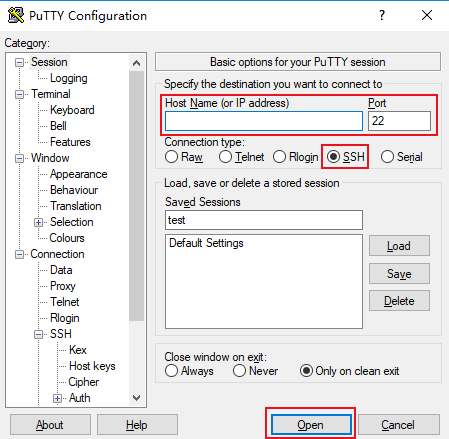
Examples of parameters are as follows:
- Host Name (or IP address): The public network IP of the cloud server (login to the cloud server console, you can get the public network IP on the list page and details page).
- Port: The port of the cloud server, which must be set to 22.
- Connect type: Select "SSH".
- Saved Sessions: Fill in the session name, such as test.
After configuring the "Host Name", then configure "Saved Sessions" and save, then you can directly double-click the saved session name under "Saved Sessions" to log in to the server for subsequent use.
4. Click [Open] to enter the running interface of "PuTTY" and prompt "login as:".
5. Enter the user name after "login as" and press Enter.
6. Enter the password after "Password" and press Enter.
The entered password is not displayed by default, as shown in the figure below:
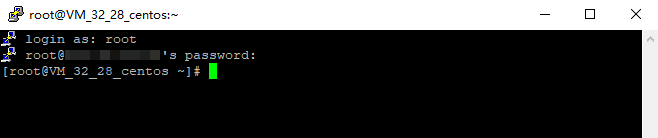
After the login is complete, the left side of the command prompt will display the information of the current login to the cloud server.
Login with key
1. Download the Windows remote login software, PuTTy.
2. Double-click [puttygen.exe] to open the PuTTy Key client.
3. Click [Load], select and open the downloaded private key storage path. As shown below:
For example, select and open the private key file with the file name david.
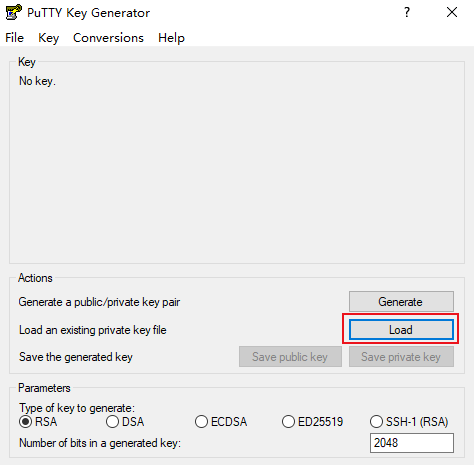
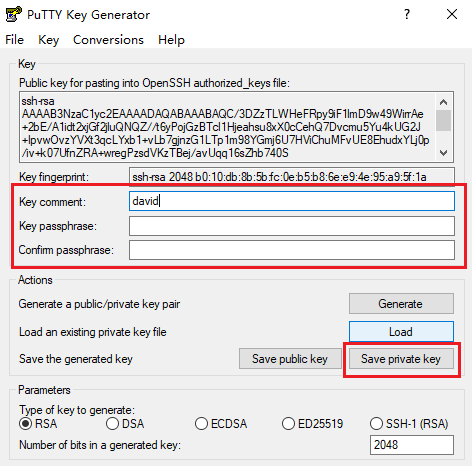
4. In the PuTTY Key Generator window, enter the key name and set the password that PuTTY uses to encrypt the private key, and click [Save private key]. As shown below:
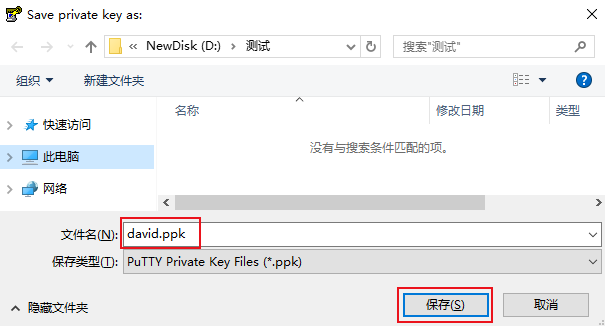
5. In the pop-up window, select the path where you store the key, enter "key name.ppk" in the file name field, and click [Save]. For example, save the david private key file as the david.ppk key file. As shown below:
6. Double-click [putty.exe] to open the PuTTY client.
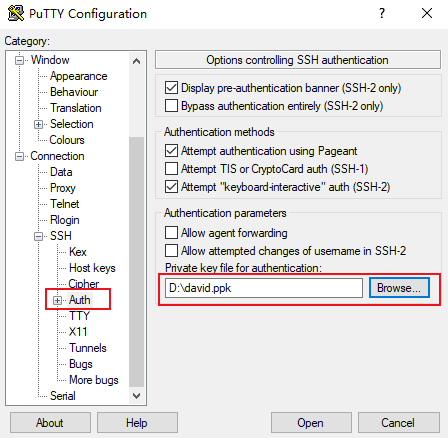
7. In the left navigation bar, select [Connection]>[SSH]>[Auth] to enter the Auth configuration interface.
8. Click [Browse], select and open the storage path of the key. As shown below:
9. Switch to the Session configuration interface, configure the server's IP, port, and connection type. As shown below:
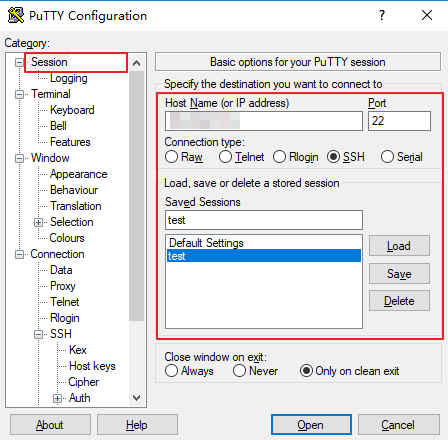
- Host Name (IP address): The public network IP of the cloud server. Log in to the cloud server console to obtain the public IP from the list page and details page.
- Port: The port of the cloud server, 22 must be filled in.
- Connect type: Select "SSH".
- Saved Sessions: Fill in the session name, such as test.
After configuring the "Host Name", then configure "Saved Sessions" and save, then you can directly double-click the saved session name under "Saved Sessions" to log in to the server for subsequent use.
10. Click [Open] to enter the running interface of "PuTTY" and prompt "login as:".
11. Enter the user name after "login as" and press Enter.
12. After "Passphrase for key "imported-openssh-key":", enter the password set in step 4 and press Enter.
The entered password is not displayed by default, as shown in the figure below:

After the login is complete, the left side of the command prompt will display the information of the current login to the cloud server.



